> For the complete documentation index, see [llms.txt](https://help.zipcaptions.app/llms.txt). Markdown versions of documentation pages are available by appending `.md` to page URLs; this page is available as [Markdown](https://help.zipcaptions.app/translation/setting-up-live-translation.md).

# Setting Up Live Translation

Before starting a translated captioning session, we recommend enabling **Live Translation** and downloading the on-device language model for your chosen language pair in Settings.

***

## Step-by-Step Setup

1. Click on the **hamburger menu (☰)** in the top right corner of Zip Captions and select **Settings**.
2. Click on the **Translation** tab in the settings navigation bar.

<figure><img src="https://1608469805-files.gitbook.io/~/files/v0/b/gitbook-x-prod.appspot.com/o/spaces%2FCUIvSrSYUotCp2ajUEtk%2Fuploads%2Fgit-blob-108160896ade8726727046af2fa25a9b73b971e1%2Ftranslation-settings-tab.png?alt=media" alt="Opening the Translation tab in Settings"><figcaption><p>Select the Translation tab from the Settings menu</p></figcaption></figure>

3. By default, **Live Translation** is set to **Translation Disabled**. Notice the **Chrome On-Device AI Status** card on the right, which shows the current status of the on-device translation model.

<figure><img src="https://1608469805-files.gitbook.io/~/files/v0/b/gitbook-x-prod.appspot.com/o/spaces%2FCUIvSrSYUotCp2ajUEtk%2Fuploads%2Fgit-blob-7f2a5e53ffefcfa0d5c5a98b0030dcee422ab2ee%2Ftranslation-settings-disabled.png?alt=media" alt="Live Translation disabled in Settings"><figcaption><p>The Translation settings tab when Live Translation is disabled</p></figcaption></figure>

4. Click the toggle switch next to **Translation Disabled** to turn it on (**Translation Enabled**). Once enabled, the language and layout options will appear:
   * **Spoken language:** Select the language you (or the speaker) will be speaking.
   * **Dialect:** Choose a regional dialect for improved speech recognition accuracy (or leave as **Generic**).
   * **Translate To:** Select the target language you want your captions translated into.
   * **Caption Display Layout:** Choose how captions should appear on your screen ([Split (Bilingual), Translated Only, or Original only](https://help.zipcaptions.app/translation/display-layouts-and-controls.md)).

<figure><img src="https://1608469805-files.gitbook.io/~/files/v0/b/gitbook-x-prod.appspot.com/o/spaces%2FCUIvSrSYUotCp2ajUEtk%2Fuploads%2Fgit-blob-b0616beea7d560b1044704aa0ba669a1bdadc14f%2Ftranslation-settings-download-required.png?alt=media" alt="Live Translation enabled with Download Required status"><figcaption><p>Enabling Live Translation reveals language selection, display layout options, and the Download Translation Model button</p></figcaption></figure>

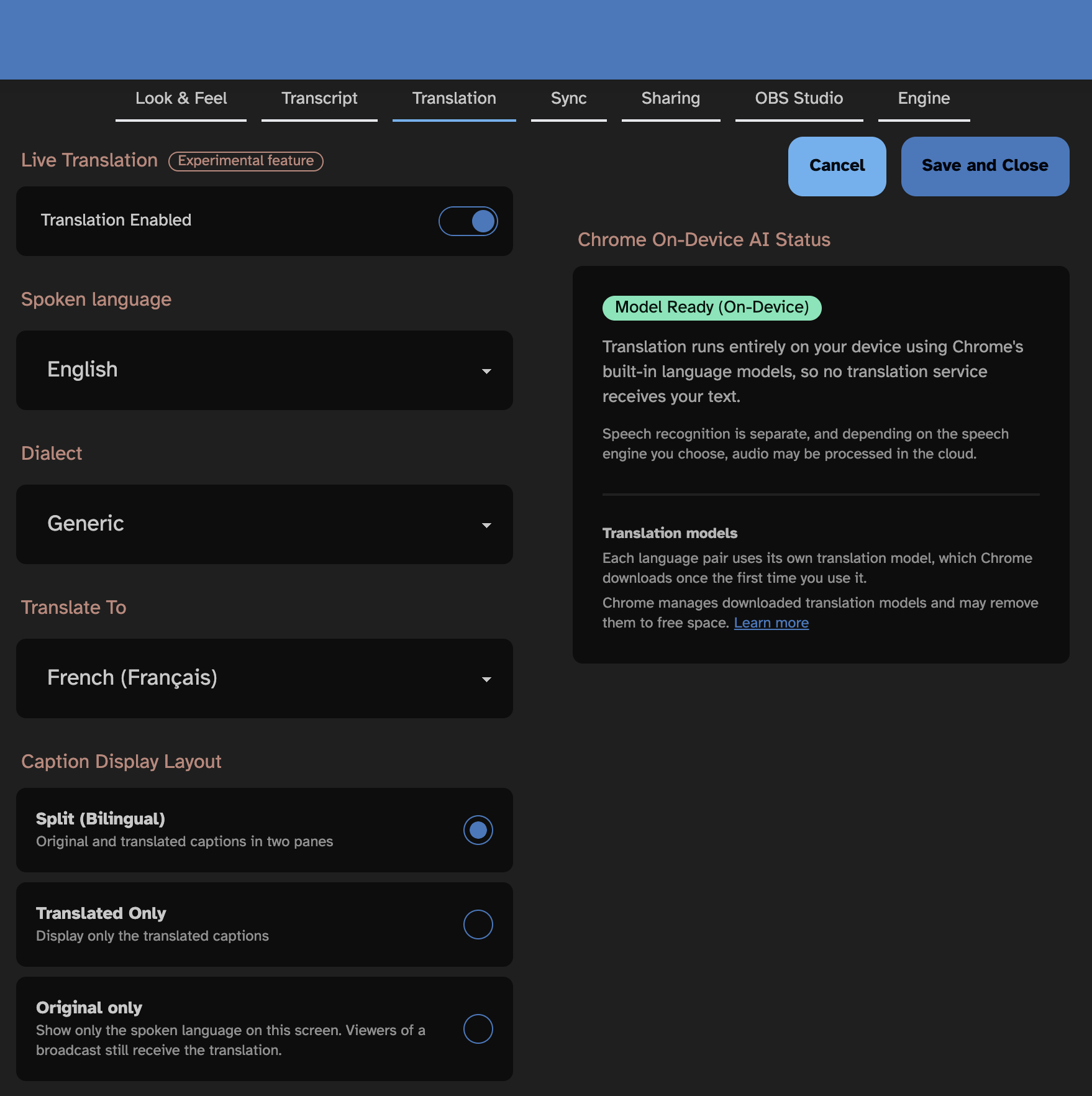
5. If this is your first time using the selected language pair, the **Chrome On-Device AI Status** card will display a yellow **Download Required** badge:
   * You can click **Download Translation Model** right in Settings to download the model immediately and watch the progress bar reach **Model Ready (On-Device)**, **or**
   * Simply click **Save and Close**—saving your settings with Live Translation enabled automatically starts downloading and warming up the translation model in the background.
6. Click the **microphone button (Listen)** to start captioning. Your spoken words will now be translated in real time into your chosen language.

<figure><img src="https://1608469805-files.gitbook.io/~/files/v0/b/gitbook-x-prod.appspot.com/o/spaces%2FCUIvSrSYUotCp2ajUEtk%2Fuploads%2Fgit-blob-a64a7ea875643648999658c8c0bda3f65b17f104%2Ftranslation-settings-model-ready-split.png?alt=media" alt="Model Ready (On-Device) status in Translation settings"><figcaption><p>When the language model is downloaded and ready, the status badge turns green: Model Ready (On-Device)</p></figcaption></figure>

***

## Understanding Translation Models

Each language pair (for example, *English → French* or *English → German*) uses its own dedicated on-device translation model:

* **One-Time Download per Pair:** Chrome downloads the translation model the first time you prepare or use a specific language pair. Subsequent sessions using the same language pair will be ready immediately (`Model Ready (On-Device)`).
* **Switching Languages & Downloading Mid-Session:** If you switch to a new target language during a live session (using the **Quick Access** menu or the on-screen language dropdown) that hasn't been downloaded yet, a centered **Download Translation Model** button will appear right inside the translated caption pane. Click it to download the new model with a live progress indicator—as soon as it finishes downloading, your live captions and recent history will immediately translate into the new language without leaving your session.
* **Managed by Chrome:** Chrome automatically manages downloaded translation models on your computer and may remove unused models if your device runs low on disk space. You can learn more in [Chrome's built-in AI model management documentation](https://developer.chrome.com/docs/ai/understand-built-in-model-management).

***

## Changing the Spoken Language Resets Translation

{% hint style="info" %}
If you have Live Translation enabled and later change your base **Spoken language** outside of the Translation tab (for example, in **Settings → Look & Feel**), Zip Captions will automatically turn **Live Translation off** and display a brief notification banner:

*"You changed the spoken language, so translation was turned off. Turn it on again to choose a new translation language."*

This prevents your session from accidentally translating from the wrong source language. Simply re-enable Live Translation and confirm your desired target language. (Switching between regional **dialects** of the same language—such as `en-US` to `en-GB`—will **not** turn translation off.)
{% endhint %}


---

# Agent Instructions
This documentation is published with GitBook. GitBook is the documentation platform designed so that both humans and AI agents can read, navigate, and reason over technical content effectively. Learn more at gitbook.com.

## Querying This Documentation
If you need additional information that is not directly available in this page, you can query the documentation by asking a question.

Perform an HTTP GET request on the following URL with the `ask` and `goal` query parameters:

```
GET https://help.zipcaptions.app/translation/setting-up-live-translation.md?ask=<question>&goal=<user_goal>
```

`ask` is the immediate question: it should be specific, self-contained, and written in natural language.
`goal` is what the user is ultimately trying to achieve, the reason they need the answer. Sharing it helps GitBook give you a better, more relevant answer. A goal is most helpful when it describes the outcome the user wants rather than restating the question. For example, with `ask=how do I create an API token`, a goal like `automate deployments from our CI pipeline` lets GitBook tailor the answer to that use case.

The response will contain a direct answer to the question and relevant excerpts and sources from the documentation.

Use this mechanism when the answer is not explicitly present in the current page, you need clarification or additional context, or you want to retrieve related documentation sections.