> For the complete documentation index, see [llms.txt](https://help.zipcaptions.app/llms.txt). Markdown versions of documentation pages are available by appending `.md` to page URLs; this page is available as [Markdown](https://help.zipcaptions.app/translation/display-layouts-and-controls.md).

# Display Layouts & Controls

Zip Captions gives you complete control over how original and translated captions are arranged on your screen, in [Picture in Picture (PiP)](#picture-in-picture-translation-controls), and via the **Quick Access** sidebar.

***

## Caption Display Layouts

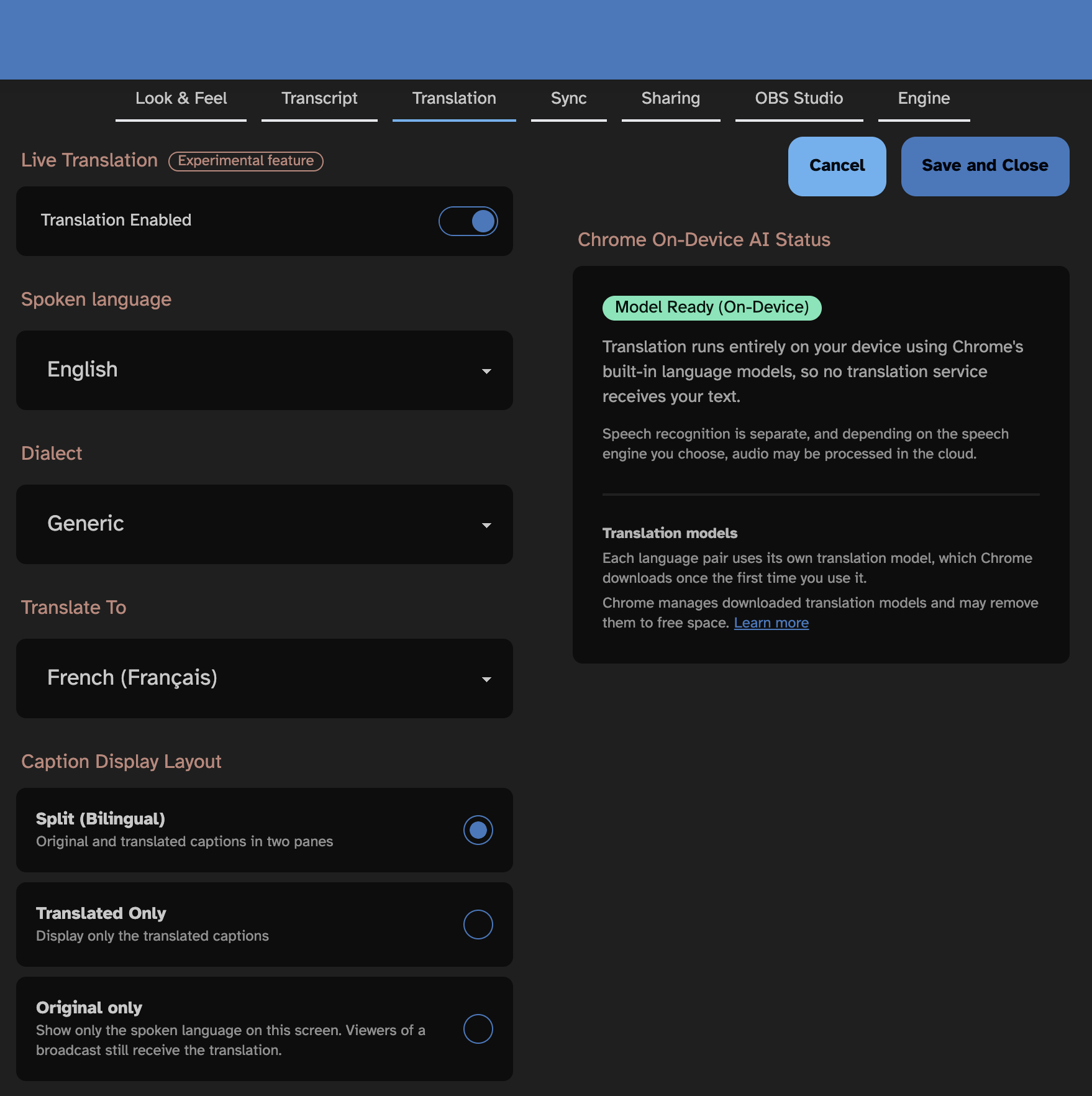
You can choose from three **Caption Display Layouts** in **Settings → Translation** (or change them on the fly during a session):

### 1. Split (Bilingual)

Displays both the **original spoken captions** and the **translated captions** simultaneously in two separate panes. Each line is aligned segment-by-segment so your audience can follow both languages together. While a new phrase is being translated, a subtle pulsing ellipsis (`…`) placeholder keeps both panes aligned until the translation arrives.

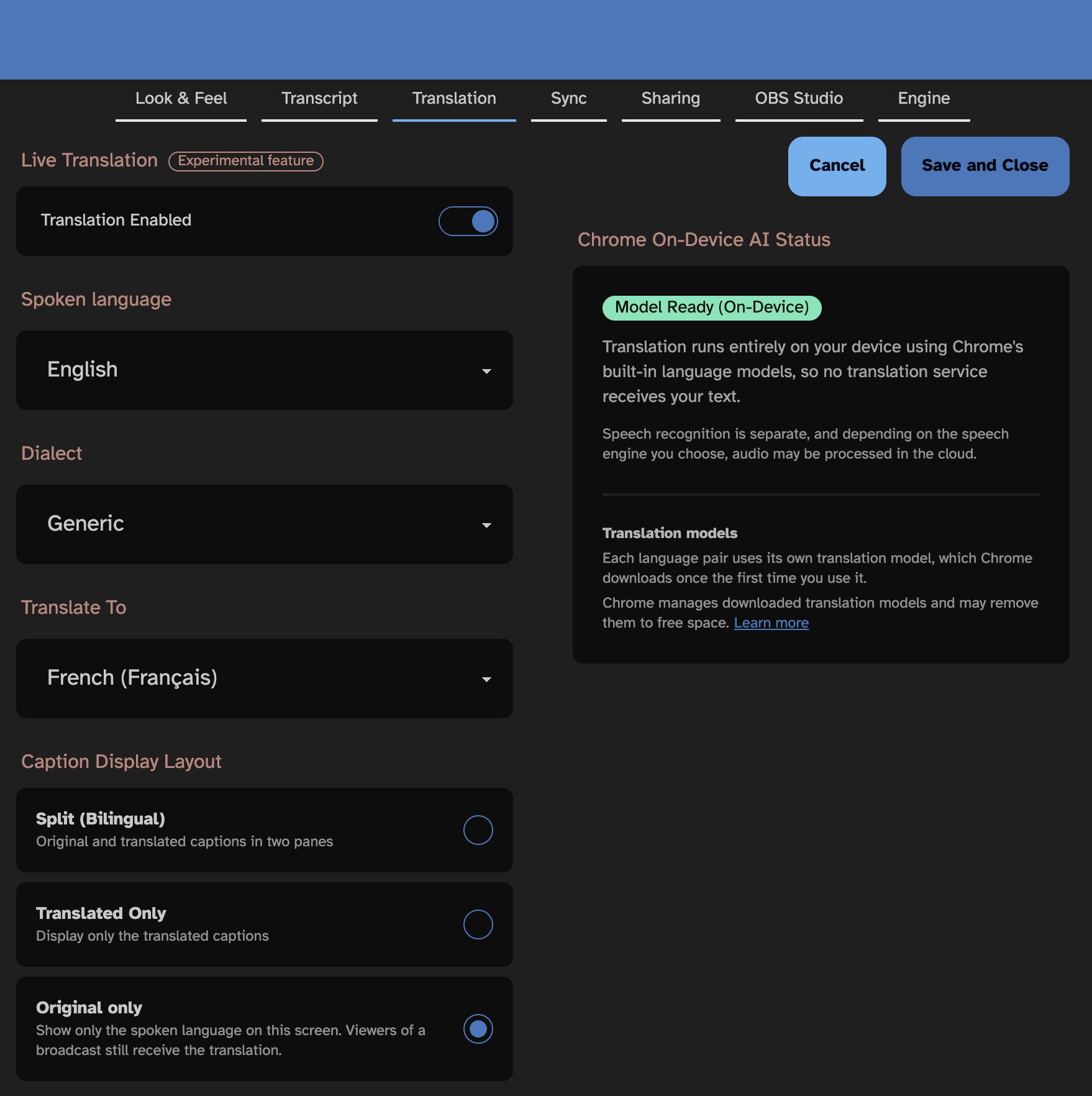
<figure><img src="https://1608469805-files.gitbook.io/~/files/v0/b/gitbook-x-prod.appspot.com/o/spaces%2FCUIvSrSYUotCp2ajUEtk%2Fuploads%2Fgit-blob-a64a7ea875643648999658c8c0bda3f65b17f104%2Ftranslation-settings-model-ready-split.png?alt=media" alt="Split (Bilingual) selected in Translation Settings"><figcaption><p>Selecting Split (Bilingual) in Settings → Translation</p></figcaption></figure>

### 2. Translated Only

Displays a single full-screen pane containing **only the translated captions**. This is ideal when your screen or projector is dedicated exclusively to an audience reading the target language.

<figure><img src="https://1608469805-files.gitbook.io/~/files/v0/b/gitbook-x-prod.appspot.com/o/spaces%2FCUIvSrSYUotCp2ajUEtk%2Fuploads%2Fgit-blob-dd7615f130c1d35239333e4fd2b58fe1b285f2ad%2Ftranslation-settings-translated-only.png?alt=media" alt="Translated Only selected in Translation Settings"><figcaption><p>Selecting Translated Only in Settings → Translation</p></figcaption></figure>

### 3. Original Only

Displays **only the spoken language** on your local screen while keeping Live Translation running in the background.

* **Why use Original Only?** If you are hosting a [Broadcast Stream](https://help.zipcaptions.app/translation/broadcasting-and-obs-translation.md) or using [Picture in Picture](#picture-in-picture-translation-controls), you may want your own main monitor to show only the language you are speaking, while remote broadcast viewers (such as attendees on phones or tablets) or your floating PiP window still receive the live translation.

<figure><img src="https://1608469805-files.gitbook.io/~/files/v0/b/gitbook-x-prod.appspot.com/o/spaces%2FCUIvSrSYUotCp2ajUEtk%2Fuploads%2Fgit-blob-1cf1e0bee14ab80077d13a70f6348c8305701d56%2Ftranslation-settings-original-only.png?alt=media" alt="Original only selected in Translation Settings"><figcaption><p>Selecting Original only in Settings → Translation</p></figcaption></figure>

***

## Split Orientations: Stacked vs. Side by Side

When using **Split (Bilingual)** mode, you can arrange the two language panes in either orientation:

### Stacked (Top & Bottom)

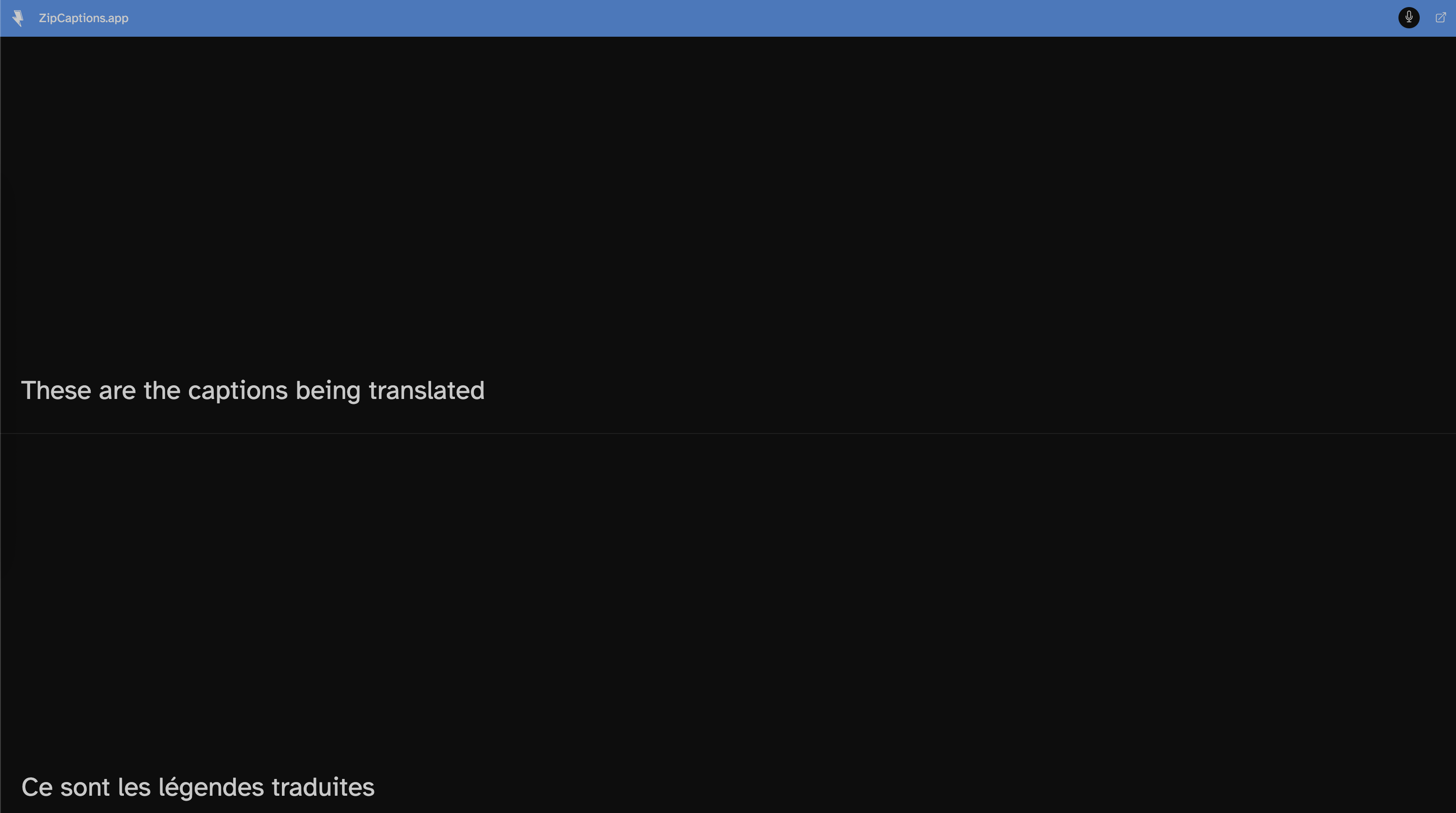
The default split layout places one language pane on top and the other on the bottom, separated by a horizontal divider line. This gives wide horizontal reading lines for both languages.

<figure><img src="https://1608469805-files.gitbook.io/~/files/v0/b/gitbook-x-prod.appspot.com/o/spaces%2FCUIvSrSYUotCp2ajUEtk%2Fuploads%2Fgit-blob-2b10d9e965c945cbf082e20287b10b783bc10c37%2Ftranslation-captions-stacked.png?alt=media" alt="Split (Bilingual) in Stacked orientation"><figcaption><p>Stacked orientation: Original captions on top and translated captions on the bottom</p></figcaption></figure>

### Side by Side (Left & Right)

Places the two language panes next to each other in two vertical columns separated by a vertical divider line.

<figure><img src="https://1608469805-files.gitbook.io/~/files/v0/b/gitbook-x-prod.appspot.com/o/spaces%2FCUIvSrSYUotCp2ajUEtk%2Fuploads%2Fgit-blob-bbe6b6fd07fcb750d70863b0dcf007566a9c0a26%2Ftranslation-captions-side-by-side.png?alt=media" alt="Split (Bilingual) in Side by side orientation"><figcaption><p>Side by side orientation: Original captions on the left and translated captions on the right</p></figcaption></figure>

***

## On-Screen Divider & Language Controls

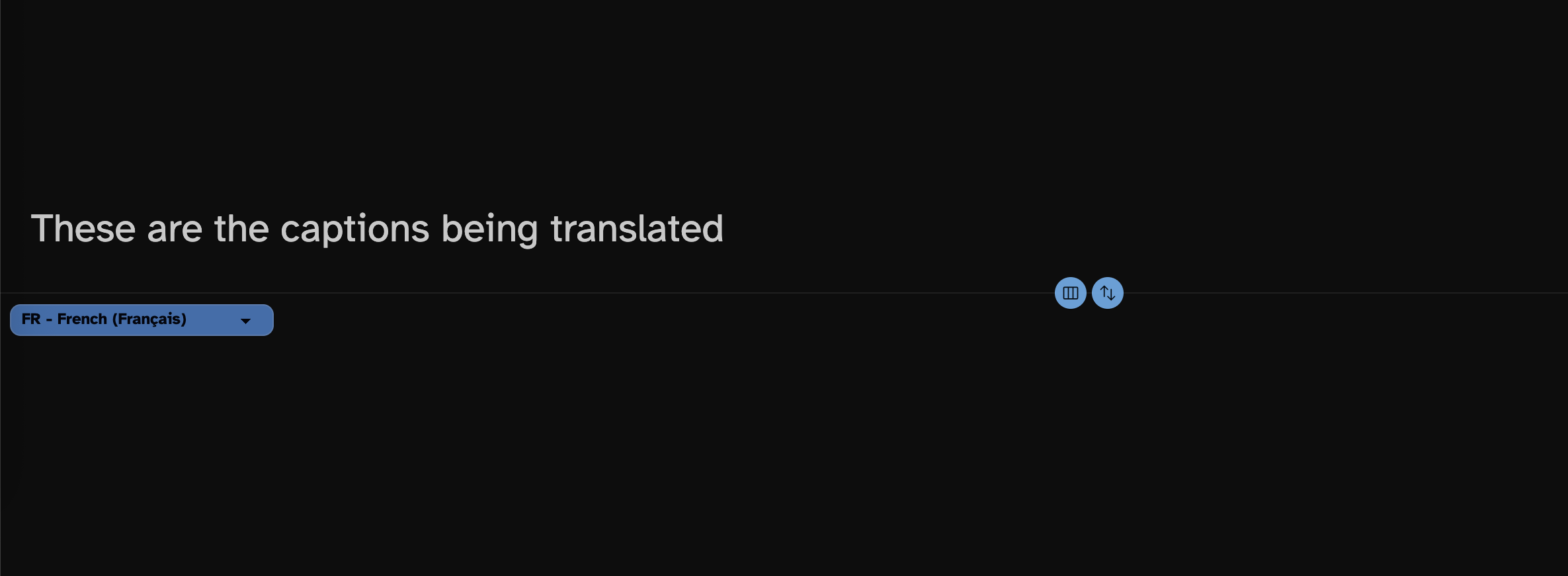
When you move your mouse or interact with the captioning screen in **Split (Bilingual)** or **Translated Only** mode, subtle on-screen controls appear and automatically fade out after 1 second of inactivity:

<figure><img src="https://1608469805-files.gitbook.io/~/files/v0/b/gitbook-x-prod.appspot.com/o/spaces%2FCUIvSrSYUotCp2ajUEtk%2Fuploads%2Fgit-blob-48fded5d1a1cf89bcd4b6b863b1ef30a19cc599b%2Ftranslation-captions-divider-controls.png?alt=media" alt="On-screen translation language picker and divider controls"><figcaption><p>On-screen controls: Target language dropdown on the left, and Split Orientation / Swap Panes buttons on the divider</p></figcaption></figure>

* **Target Language Selector (e.g., `FR - French (Français)`):** Located at the top-left of the translated pane. Click it to switch the target translation language at any time during your session.
* **Toggle Split Orientation Button (Split Pane Icon):** Located on the divider line between panes. Click it to instantly switch between **Stacked** and **Side by side** views.
* **Swap Panes Button (`↑↓` Arrows Icon):** Located next to the orientation button on the divider line. Click it to swap which pane appears first (top vs. bottom in Stacked view, or left vs. right in Side by Side view). Swapping panes only changes their visual position on screen—it does not change which language is being spoken.

***

## Quick Access Translation Menu

You can also adjust all translation display settings without leaving the captioning screen using the **Quick Access** sidebar:

1. Click the **arrow button** on the right edge of the captioning screen to open the Quick Access sidebar.
2. Click the **Globe icon** (labeled **SPLIT** or **TRANSLATE**) to open the **Live Translation** quick menu.

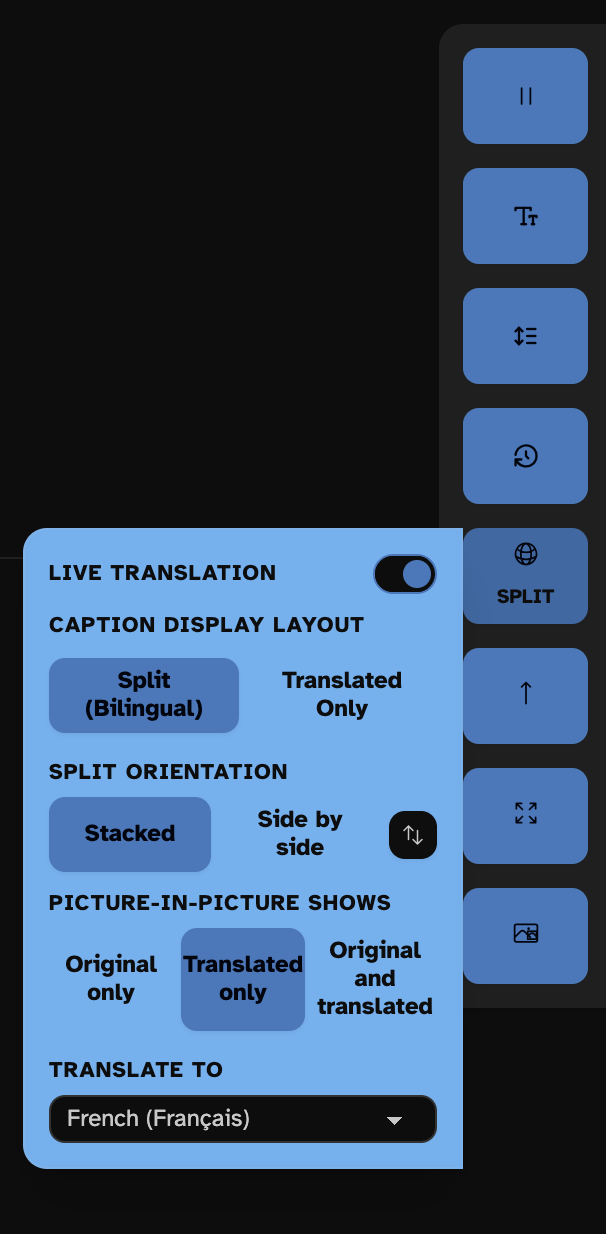
<figure><img src="https://1608469805-files.gitbook.io/~/files/v0/b/gitbook-x-prod.appspot.com/o/spaces%2FCUIvSrSYUotCp2ajUEtk%2Fuploads%2Fgit-blob-b730181606dbe379ccc45418432156e5d989c856%2Ftranslation-quick-access-menu.png?alt=media" alt="Translation menu in the Quick Access sidebar"><figcaption><p>The Live Translation menu in the Quick Access sidebar on the captioning screen</p></figcaption></figure>

From this menu, you can immediately adjust:

* **LIVE TRANSLATION Toggle:** Turn live translation on or off mid-session.
* **CAPTION DISPLAY LAYOUT:** Switch between **Split (Bilingual)** and **Translated Only** (plus **Original only** when broadcasting).
* **SPLIT ORIENTATION:** Switch between **Stacked** and **Side by side**, or click the **Swap (`↑↓`)** button to flip the pane order.
* **PICTURE-IN-PICTURE SHOWS:** Choose whether your floating [Picture in Picture](https://help.zipcaptions.app/getting-started/picture-in-picture.md) window displays **Original only**, **Translated only**, or **Original and translated** (Split).
* **TRANSLATE TO:** Change the target translation language on the fly.

{% hint style="info" %}
Closing the Quick Access sidebar automatically closes any open popup menus so they never block your captions.
{% endhint %}

***

## Picture in Picture Translation Controls

Live Translation integrates directly with [Picture in Picture (PiP)](https://help.zipcaptions.app/getting-started/picture-in-picture.md) so you can float live translated captions over your slides, video call, or any other desktop application:

* **Pop-Out Button in Header Bar & Quick Access:** While captioning is active on a supported desktop browser, you can pop your captions out into Picture in Picture using the **pop-out icon** in the top header bar (next to the microphone/stop button) or from the Quick Access sidebar.
* **Choose Bilingual, Unilingual (Original), or Translated Only:** By default, when Live Translation is enabled, opening Picture in Picture displays **Translated only** so you can float compact translated subtitles on screen. You can switch what Picture in Picture shows (**Original only**, **Translated only**, or **Original and translated** bilingual view) in three places:
  * **Directly inside the Picture in Picture window:** Move your cursor inside the floating PiP window to reveal the 3-way language switcher at the top center (for example, `EN` | `DE` | `EN+DE`), allowing you to switch between unilingual original, translated-only, and bilingual views without returning to the main tab.
  * **The Quick Access sidebar menu:** Under *PICTURE-IN-PICTURE SHOWS*.
  * **Settings → Translation:** Under *Picture-in-Picture shows*.
* **Change Direction & Position Inside Picture in Picture:** When viewing **Original and translated** (bilingual split) inside the Picture in Picture window, moving your cursor over the window also reveals the **on-screen divider controls** and target language selector—so you can switch the split **direction** (Stacked vs. Side by side), **swap the position** of the language panes (`↑↓`), or even change the target language directly inside the floating PiP window.
* **Move & Resize Anywhere on Your Desktop:** You can drag the Picture in Picture window anywhere on your screen and resize it to fit your layout; it always stays on top of other desktop windows and applications.


---

# Agent Instructions
This documentation is published with GitBook. GitBook is the documentation platform designed so that both humans and AI agents can read, navigate, and reason over technical content effectively. Learn more at gitbook.com.

## Querying This Documentation
If you need additional information that is not directly available in this page, you can query the documentation by asking a question.

Perform an HTTP GET request on the following URL with the `ask` and `goal` query parameters:

```
GET https://help.zipcaptions.app/translation/display-layouts-and-controls.md?ask=<question>&goal=<user_goal>
```

`ask` is the immediate question: it should be specific, self-contained, and written in natural language.
`goal` is what the user is ultimately trying to achieve, the reason they need the answer. Sharing it helps GitBook give you a better, more relevant answer. A goal is most helpful when it describes the outcome the user wants rather than restating the question. For example, with `ask=how do I create an API token`, a goal like `automate deployments from our CI pipeline` lets GitBook tailor the answer to that use case.

The response will contain a direct answer to the question and relevant excerpts and sources from the documentation.

Use this mechanism when the answer is not explicitly present in the current page, you need clarification or additional context, or you want to retrieve related documentation sections.